

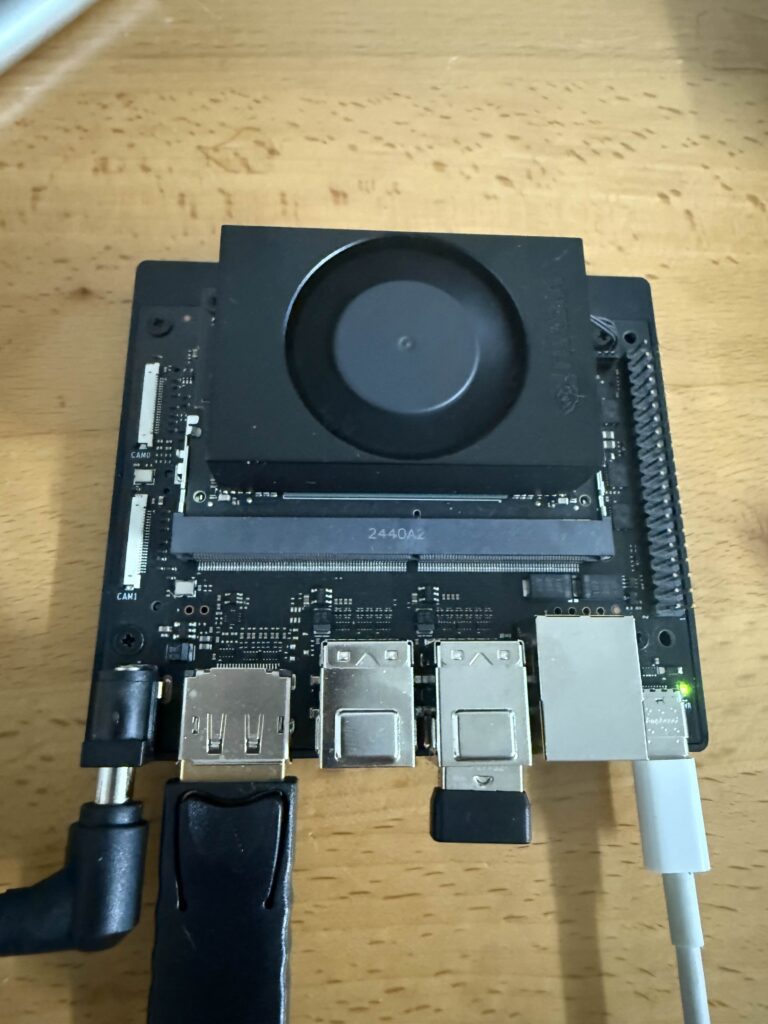
In this initial setup of the Jetson Orin Nano (henceforth Jetson), I used a Linux machine running on Ubuntu 22. I decided to run the Jetson on a Samsung 1 TB NVMe SSD and then cloned a second SSD as a backup to default to in the future as an initial configuration to start from if needed. I’m planning on creating this blog series to document the development of an autonomous robot. I’m trying to see if I can get a robot to autonomously take my trash bins out to the street every week. To start we’ll see if I can get a small 4-wheeled device to the street and back.
I feel like the setup of Jetson type devices is constantly changing so as of the writing of this article, here is my process. It may be different if you’re reading this at a later date but I hope it at least helps guide your process and get you up and running on the Jetson.
Step 1: Re-flashing the Jetson Orin Nano
To enter Force Recovery Mode
- Remove barrel jack power supply and all other connections
- Connect USB-C to host machine (I had to connect to the USB-C on the back of my Linux machine for the USB-C connection to be recognized)
- Short FC REC to GND
- On the Jetson Orin Nano Developer kit it is opposite of the barrel jack side
- Plug in the barrel jack while still shorting FC REC to GND (see Figure 1 below)
- Wait 3 s
- Then in Terminal, type the following command
lsusb | grep -i nvidia
If you see something like “Bus 001 Device 005: ID 0955:7523 NVIDIA Corp. APX” then you are in recovery mode!
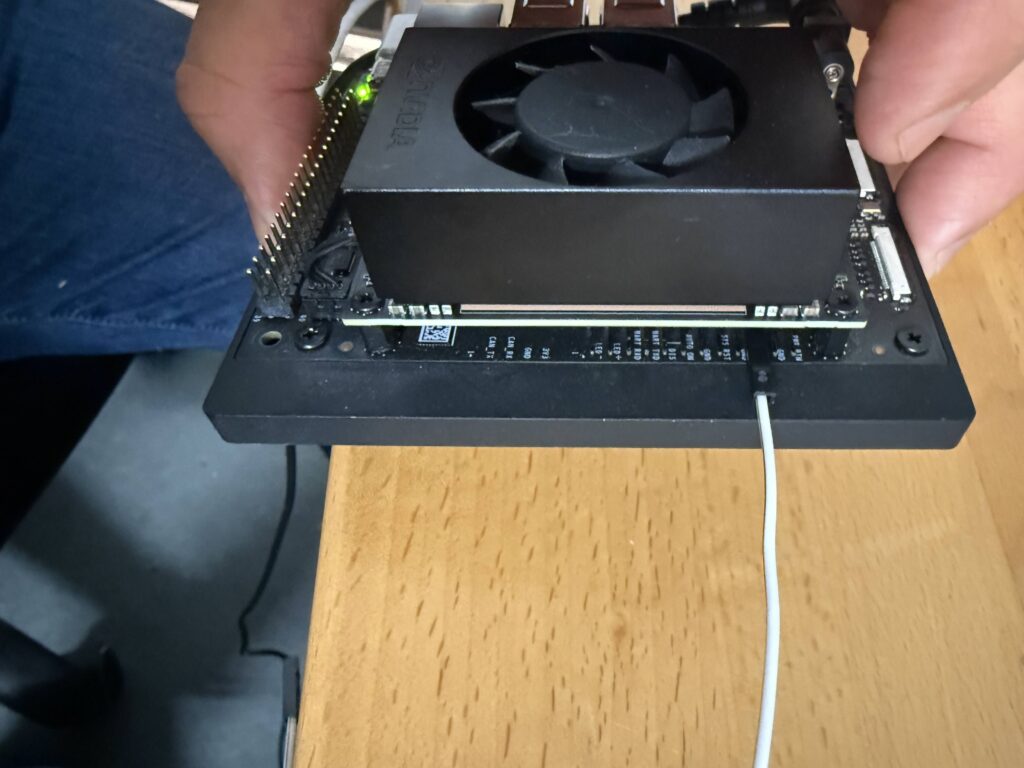
Figure 1 – FC REC pin on Jetson Orin Nano Developer Kit. It is located opposite the barrel jack.
Next launch NVIDIA SDK Manager on your host computer. Type the following into Terminal.
sdkmanager
Then login using your NVIDIA account. I would update the SDK to the latest version if you don’t already have it. As of this writing, I updated to version 2.3.0.12626. I also updated to the latest version of JetPack, JetPack 6.2.1. For the record I am using the NVIDIA Jetson Orin Nano Super Developer Kit (8 GB).
Accept terms and hit Continue. It will take a few minutes to download and install.
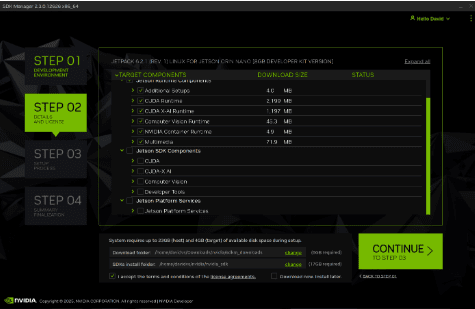
Once it is downloaded, select your settings and click on Flash. Then select your connection and confirm device settings. Prior to installation, you’ll need to boot up the Jetson and get it setup for SSH service. I typically keep the Jetson in our lab so I find working via SSH makes it super easy to work on the Jetson remotely.

Step 2: Booting the Jetson
Connect a monitor via the HDMI cable and plug in a keyboard and mouse via the USB ports. Once you have GUI access to the Jetson, finish setup via the Ubuntu wizard. Next you need to setup the Jetson for SSH. In terminal type the following,
sudo systemctl enable ssh
sudo systemctl start ssh
Then confirm it is running with the following,
sudo systemctl status ssh
As an aside, make sure Num Lock is on when entering your password. If it does not recognize your password this could be the problem. Once it is running the status command should show something like a green dot with an “active (running)” status.
Now go back to the SDK manager and click on Install. It took my system about 20 minutes to finish the installation successfully.
Step 3: Confirm Jetson is Running Smoothly
Go back to the Jetson and verify the Jetson environment. Run the following commands in Terminal,
# Confirm JetPack version
head -n 1 /etc/nv_tegra_release
# Check CUDA toolkit
nvcc –version
# Confirm GPU is visible
nvidia-smi
# Check Python bindings for CUDA
python3 -c “import torch; print(torch.cuda.is_available())”
With all of this confirmed we’ll start with setting up this Jetson for autonomous navigation. Subscribe to our newsletter to stay updated on our progress.
